# Unreal Engine Socket Communication

## 0. Environment

Windows 10

Unreal Engine 5.1.1

SteamVR 1.25.8

## 1. Create a new Unreal project

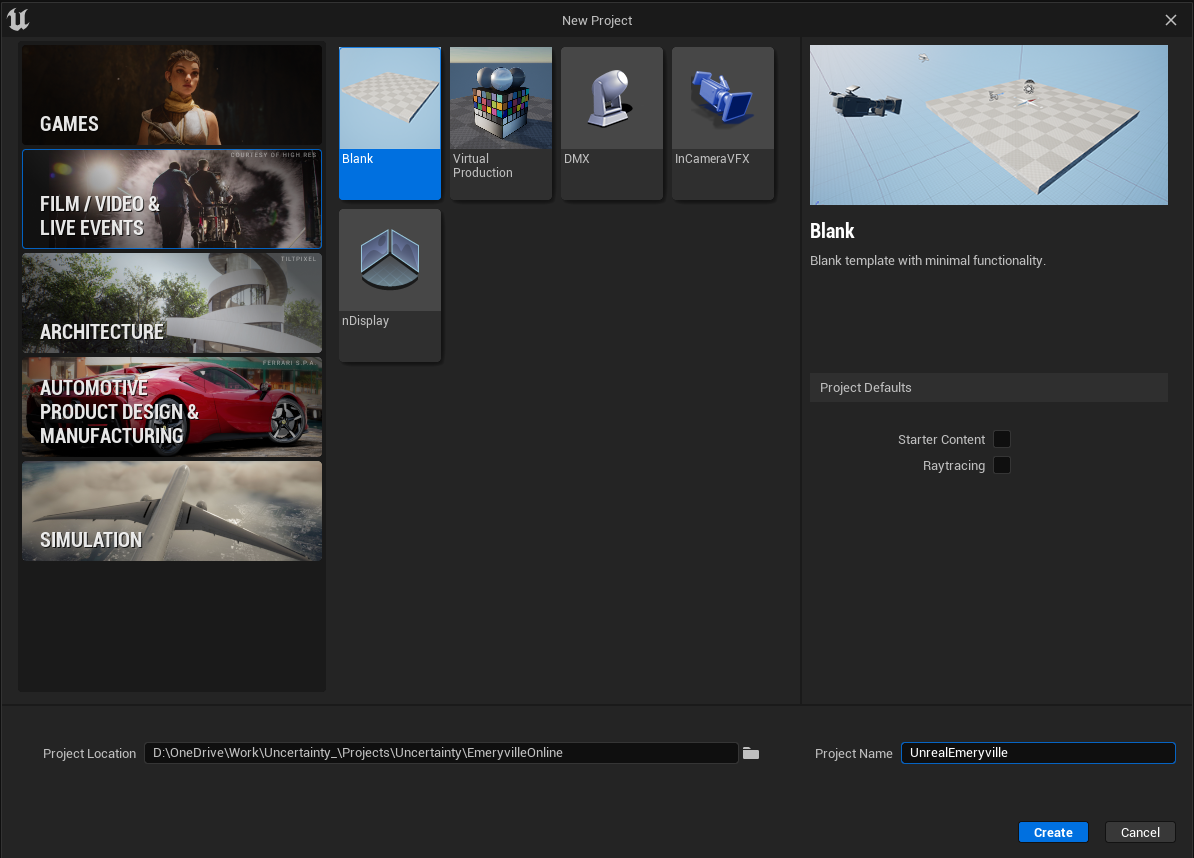
Select "Film / Video & Live Events" -> "Blank". Leave "Starter Content" and "Raytracing" unchecked.

Click "Create" button.

<figure><img src="https://1287130752-files.gitbook.io/~/files/v0/b/gitbook-x-prod.appspot.com/o/spaces%2FvVJ0h2a4qMIhB1I8GdV8%2Fuploads%2Fgit-blob-fd7468df2216b86a62105e8e73cf666b10dfef2c%2Fimage.png?alt=media" alt=""><figcaption></figcaption></figure>

## 2. Add plugin

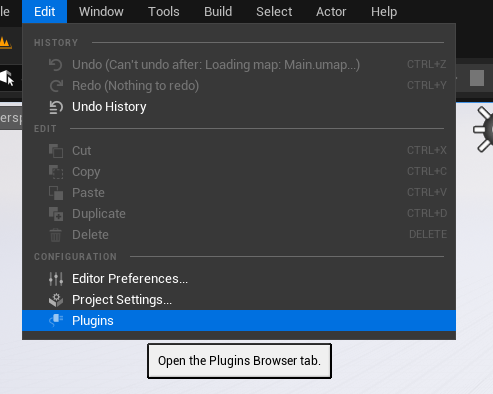
Click "Edit" -> "Plugins" to open the plugins window.

<figure><img src="https://1287130752-files.gitbook.io/~/files/v0/b/gitbook-x-prod.appspot.com/o/spaces%2FvVJ0h2a4qMIhB1I8GdV8%2Fuploads%2Fgit-blob-8560cf3b21285b4eb40093ba6b2f5c6b90d8200b%2Fimage.png?alt=media" alt=""><figcaption></figcaption></figure>

Search and add the following plugin.

<figure><img src="https://1287130752-files.gitbook.io/~/files/v0/b/gitbook-x-prod.appspot.com/o/spaces%2FvVJ0h2a4qMIhB1I8GdV8%2Fuploads%2Fgit-blob-8a5f75e0b71d38437f948022c1fd7d0fd4bb0226%2Fimage.png?alt=media" alt=""><figcaption></figcaption></figure>

After adding the plugin, Unreal Engine needs to be restarted.

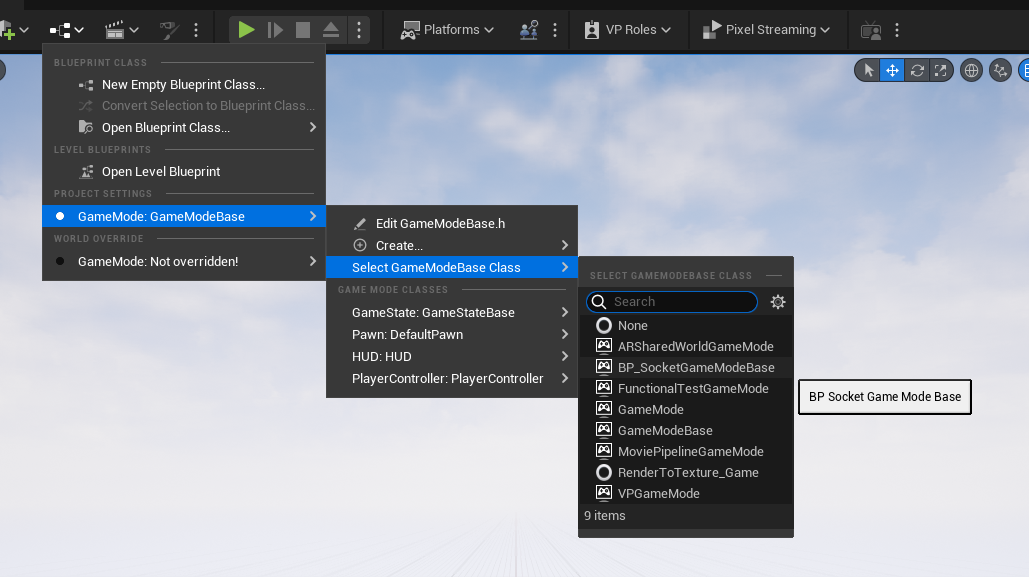
## 3. Set up a new GameModeBase class

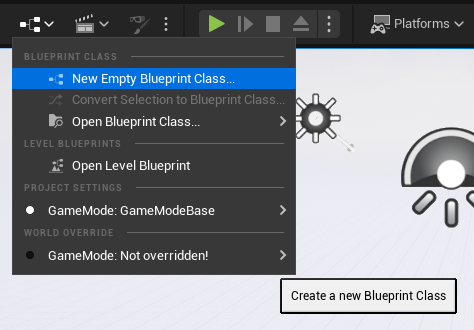
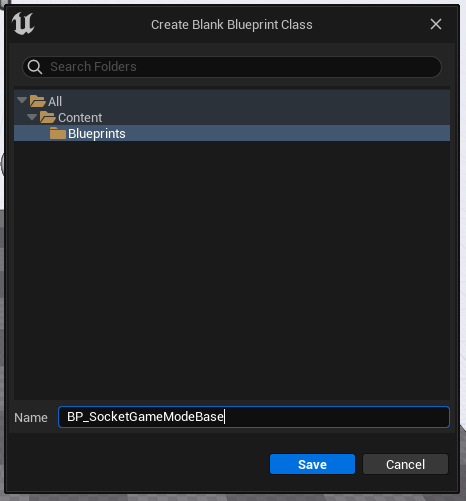
Click the Blueprint button, select "New Empty Blueprint Class...".

<figure><img src="https://1287130752-files.gitbook.io/~/files/v0/b/gitbook-x-prod.appspot.com/o/spaces%2FvVJ0h2a4qMIhB1I8GdV8%2Fuploads%2Fgit-blob-23f8fc55f81fae6046b62dbbfd994a9e4b516069%2Fimage.png?alt=media" alt=""><figcaption></figcaption></figure>

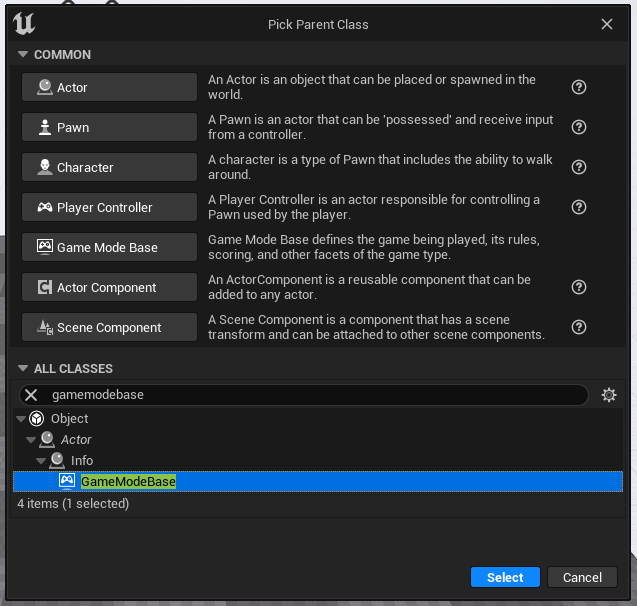
Choose "GameModeBase" as the parent class.

<figure><img src="https://1287130752-files.gitbook.io/~/files/v0/b/gitbook-x-prod.appspot.com/o/spaces%2FvVJ0h2a4qMIhB1I8GdV8%2Fuploads%2Fgit-blob-5d70f35569e7b449d058b9edf5d75937f04a34a7%2Fimage.png?alt=media" alt=""><figcaption></figcaption></figure>

<figure><img src="https://1287130752-files.gitbook.io/~/files/v0/b/gitbook-x-prod.appspot.com/o/spaces%2FvVJ0h2a4qMIhB1I8GdV8%2Fuploads%2Fgit-blob-1a021ad3b6d1e4ad2acf898c056013aebc10ca5b%2Fimage.png?alt=media" alt=""><figcaption></figcaption></figure>

<figure><img src="https://1287130752-files.gitbook.io/~/files/v0/b/gitbook-x-prod.appspot.com/o/spaces%2FvVJ0h2a4qMIhB1I8GdV8%2Fuploads%2Fgit-blob-0f75d6e677dd85a359e7a4c79a69804f31e9ead0%2Fimage.png?alt=media" alt=""><figcaption></figcaption></figure>

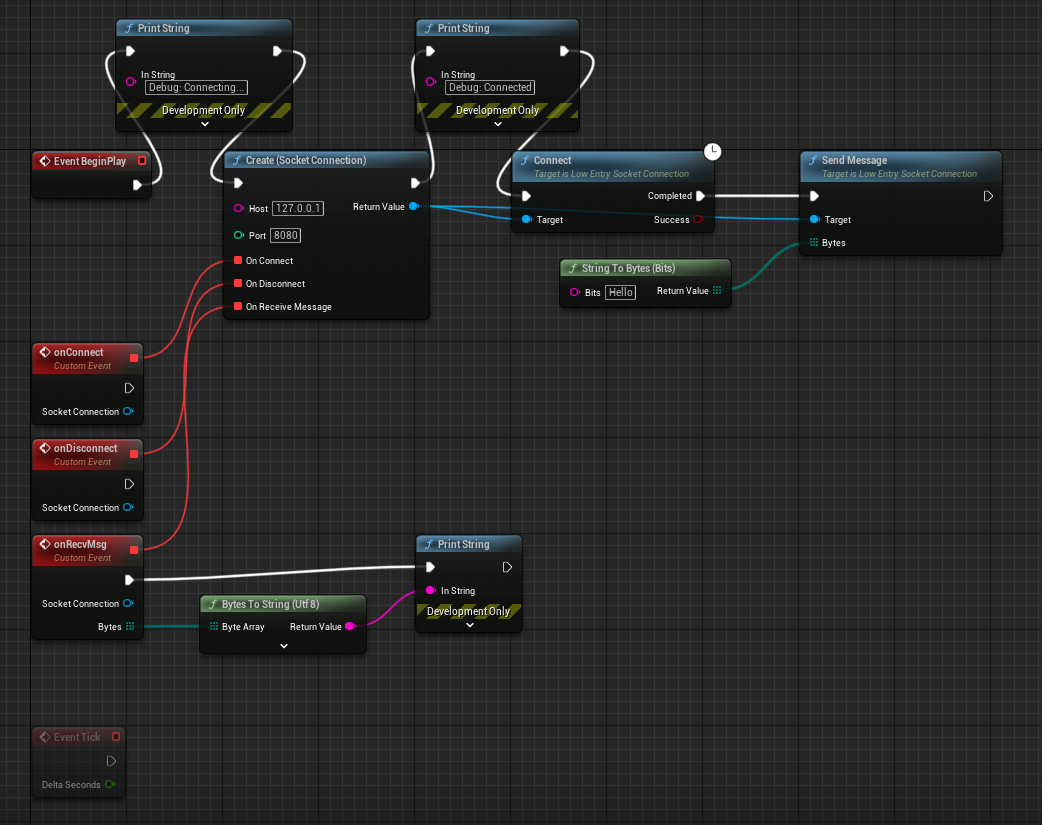
Finally, update the GameModeBase class

<figure><img src="https://1287130752-files.gitbook.io/~/files/v0/b/gitbook-x-prod.appspot.com/o/spaces%2FvVJ0h2a4qMIhB1I8GdV8%2Fuploads%2Fgit-blob-16f222e816319b4dab7fbf7e25ef2cb699b4e59e%2Fimage.png?alt=media" alt=""><figcaption></figcaption></figure>

## 4. External Python server

```python
import socket
import struct

s = socket.socket(socket.AF_INET, socket.SOCK_STREAM)
s.bind(("", 8080))
s.listen(1)

conn, addr = s.accept()

print("connected by", addr)

while True:
    data = conn.recv(1024)

    print("recv:", data)

    content = "hello Unreal!"

    buffer = struct.pack(">BB", 1, len(content))
    buffer += content.encode()

    conn.sendall(buffer)
    print("sent:", buffer)

    break

s.close()

```

### A Note on FPS

Since we might want to use EventTick to transmit messages, it could be useful if we limit event tick rate on the gamemode base.

To set the rate, go to Blueprint setting of the GameModeBase, select "GameModeBase" on the Components view. Then, on the Details panel, change the "Tick Interval" value to desired value.
<figure><img src="https://1287130752-files.gitbook.io/~/files/v0/b/gitbook-x-prod.appspot.com/o/spaces%2FvVJ0h2a4qMIhB1I8GdV8%2Fuploads%2FjJq6rh8XdWdmuOIXI67x%2Fimage.png?alt=media&#x26;token=5ebb28d2-d44f-4327-930b-4e1afb9ec82f" alt=""><figcaption></figcaption></figure>