# Unreal Engine Communicate with SteamVR

## 0. Environment

Windows 10

Unreal Engine 5.1.1

SteamVR 1.25.8

## 1. Create a new Unreal project

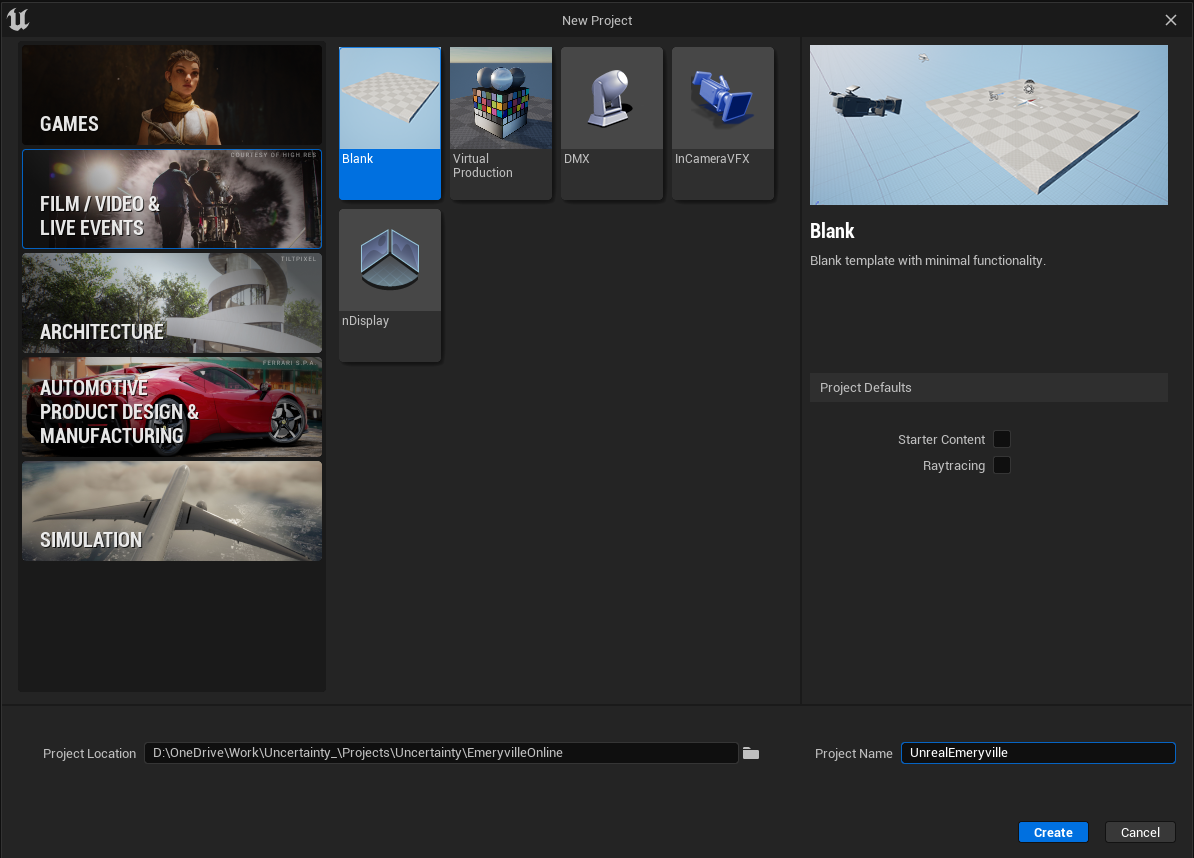
Select "Film / Video & Live Events" -> "Blank". Leave "Starter Content" and "Raytracing" unchecked.

Click "Create" button.

<figure><img src="/files/AGYu5PtxkhGxsNwIwi5z" alt=""><figcaption></figcaption></figure>

## 2. Add plugin

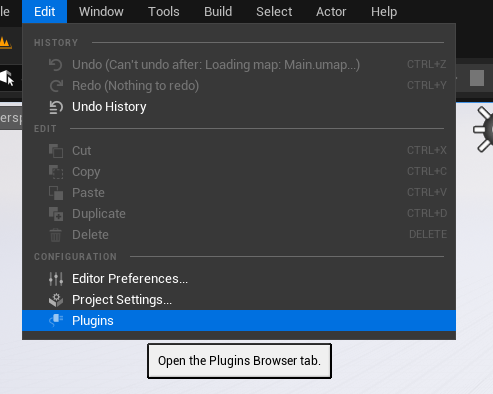
Click "Edit" -> "Plugins" to open the plugins window.

<figure><img src="/files/d8HdDniE4FZeAlmoYn5Z" alt=""><figcaption></figcaption></figure>

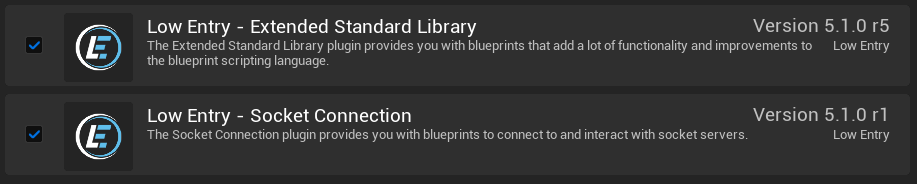
Search and add the following plugins.

<figure><img src="/files/pWMbD3syzzfkKgMPowSV" alt=""><figcaption></figcaption></figure>

<figure><img src="/files/YBrSIeQ20KzVvhC7QfSd" alt=""><figcaption></figcaption></figure>

<figure><img src="/files/VsdDt3dbXF5pzpkUhEyQ" alt=""><figcaption></figcaption></figure>

After adding the plugin, Unreal Engine needs to be restarted.

Before restart, make sure SteamVR is running

<figure><img src="/files/GY1ewR8tP4I3nBGiNIEO" alt=""><figcaption></figcaption></figure>

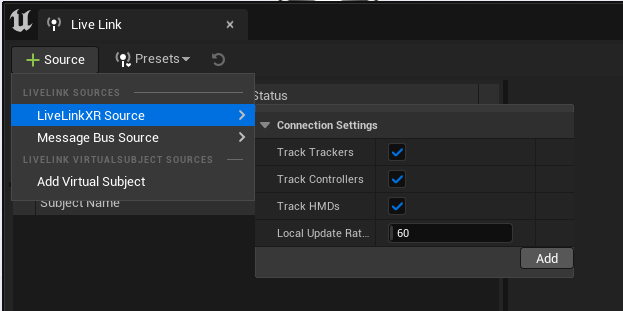
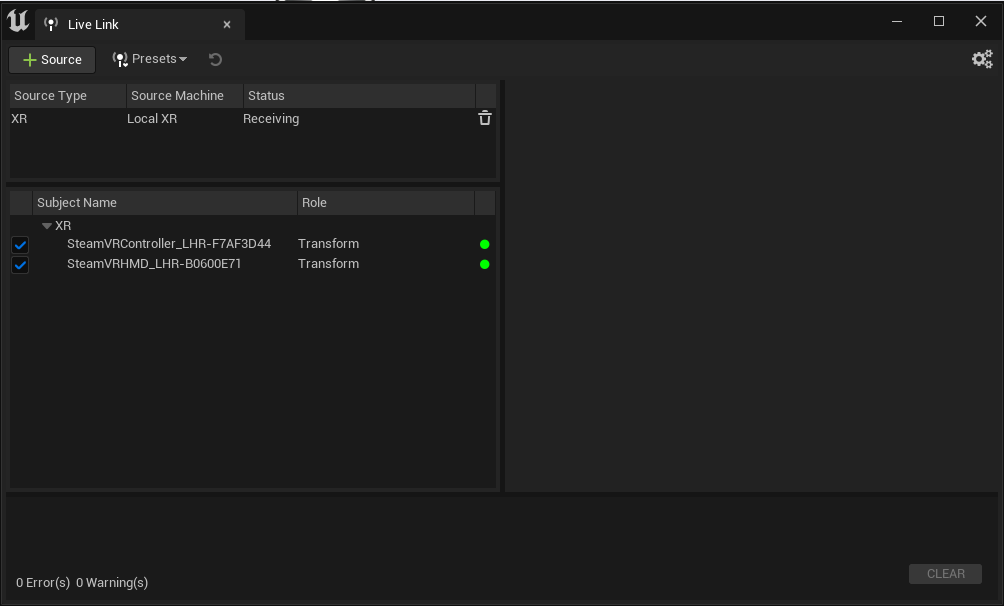
## 3. Set up VR devices

<figure><img src="/files/1FZRpyde7oA1WJICckWl" alt=""><figcaption></figcaption></figure>

<figure><img src="/files/wpdpCMcyZb5siUCMsUhy" alt=""><figcaption></figcaption></figure>

<figure><img src="/files/PpvhDsMn85vZJquS5nOx" alt=""><figcaption></figcaption></figure>

## 4.1 Bind to virtual camera

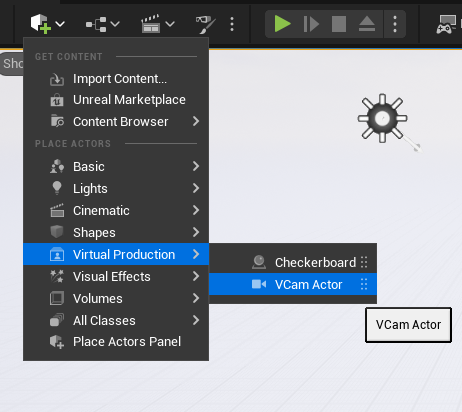
Create a virtual camera.

<figure><img src="/files/qMuClZq9xTI4iixFlSVW" alt=""><figcaption></figcaption></figure>

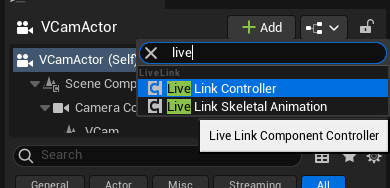
Add a "Live Link Controller" component to VCam.

<figure><img src="/files/fdPgcQlleBked3jhSfYn" alt=""><figcaption></figcaption></figure>

In the "Subject Representation" field, select the desired VR device to bind.

<figure><img src="/files/ufzD33kwMC27jMaasRPl" alt=""><figcaption></figcaption></figure>

Now the virtual camera should be controlled by the VR device.

## 4.2 Read from Blueprint

The following Blueprint code shows how to read the location of the tracker.

<figure><img src="/files/4Z5hpjOkVo1pxeEx9LU6" alt=""><figcaption></figcaption></figure>

## Reference

{% embed url="<https://www.youtube.com/watch?v=HwAra3yXVHs>" %}

{% embed url="<https://www.youtube.com/watch?v=pqbuk0nQ5Sk>" %}

Other possible methods:

{% embed url="<https://dev.epicgames.com/community/learning/tutorials/LdR2/unreal-engine-how-to-use-vive-trackers-in-ue-5-2-and-later-versions>" %}

{% embed url="<https://github.com/ValveSoftware/openxr_engine_plugins>" %}

{% embed url="<https://docs.unrealengine.com/4.26/en-US/BlueprintAPI/SteamVR/GetTrackedDevicePositionandOrien-/>" %}


---

# Agent Instructions: Querying This Documentation

If you need additional information that is not directly available in this page, you can query the documentation dynamically by asking a question.

Perform an HTTP GET request on the current page URL with the `ask` query parameter:

```
GET https://tk233.gitbook.io/notes/uw/unreal-engine-communicate-with-steamvr-and-external-python.md?ask=<question>
```

The question should be specific, self-contained, and written in natural language.
The response will contain a direct answer to the question and relevant excerpts and sources from the documentation.

Use this mechanism when the answer is not explicitly present in the current page, you need clarification or additional context, or you want to retrieve related documentation sections.